Exercise - Register and consume services
ASP.NET Core apps often have a need to access the same services across multiple components. ASP.NET Core uses a built-in dependency injection container to manage the services that an app uses.
Your team lead tasks you to create a barebones website for your company. The website should display a welcome message on the main page. You decide to create a service to generate the welcome message. You'll then register the service with the service container so that it can be injected into components that need it.
Create an ASP.NET Core app
You need an ASP.NET Core app to play the role of your team's app. Let's create a new ASP.NET Core app using the C# Dev Kit extension in Visual Studio Code.
Launch Visual Studio Code.
Press Ctrl+Shift+P to open the command palette.
Search for and select .NET: New Project....
Search for and select ASP.NET Core Empty.
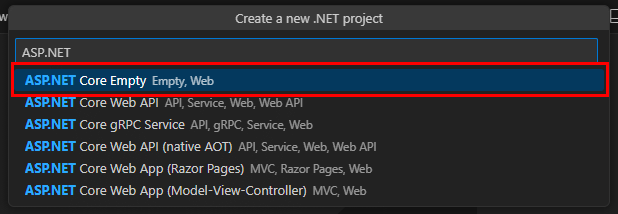
Select or create a folder for the new project.
Name the new app MyWebApp.
Select Create project to create the project.
When the new project opens, expand the
Solution Explorerpane to view the project files.

Run the app
Test the app to make sure it runs.
In Visual Studio Code, press F5 to build and run the app.
- When prompted, select C# as the debugger.
- When prompted, select C#: MyWebApp [Default Configuration] as the launch configuration to use.
This command starts the app and hosts it on a local web server. A browser window opens and displays, "Hello, World!"
Close the browser window and stop the app by pressing Shift+F5 in Visual Studio Code.
Create a service
Now that you have a working app, let's create a service that generates a welcome message for the main page.
Right-click the MyWebApp project in the Explorer pane. Select New Folder. Name the folder Services.
Right-click the Services folder. Select New File. Name the file WelcomeService.cs.
Replace the contents of WelcomeService.cs with the following code:
namespace MyWebApp.Services;

public class WelcomeService : IWelcomeService
{

    DateTime _serviceCreated;
    Guid _serviceId;

    public WelcomeService()
    {
        _serviceCreated = DateTime.Now;
        _serviceId = Guid.NewGuid();
    }

    public string GetWelcomeMessage()
    {
        return $"Welcome to Contoso! The current time is {_serviceCreated}. This service instance has an ID of {_serviceId}";
    }
}
This code defines a
WelcomeServiceclass with aGetWelcomeMessagemethod that generates a welcome message. The message includes the current time when the service was created, as well as a unique identifier for each instance of the service.Note that the
_serviceCreatedand_serviceIdfields are set in the constructor, and they never change for the lifetime of the service instance.
Register the service
Now that you have a service, you need to register it with the service container.
Open the Program.cs file.
Add the following directive to the top of the file:
using MyWebApp.Services;This directive resolves the reference to the
WelcomeServiceclass.Immediately after the
var builder = WebApplication.CreateBuilder(args);line, add the following code:builder.Services.AddSingleton<WelcomeService>();WebApplication.CreateBuildercreates a new instance of theWebApplicationBuilderclass calledbuilder. The preceding code registers theWelcomeServiceclass with the service container with a singleton lifetime.Change the
app.MapGet("/", () => "Hello World!");line to the following code:app.MapGet("/", (WelcomeService welcomeService) => welcomeService.GetWelcomeMessage());This code maps an HTTP GET request to the root URL (
/) to a delegate that returns the welcome message generated by theWelcomeServiceservice.Your Program.cs file should look like this:
using MyWebApp.Services;

var builder = WebApplication.CreateBuilder(args);
builder.Services.AddSingleton<WelcomeService>();

var app = builder.Build();

app.MapGet("/", (WelcomeService welcomeService) => welcomeService.GetWelcomeMessage());

app.Run();
Test the changes
- Save all your changes and run the app as before.
- When the browser window opens, note the root URL displays the welcome message generated by the
WelcomeServiceservice. - Close the browser window and stop the app by pressing Shift+F5 in Visual Studio Code.
Use an interface
Your team reviews your code, and another developer suggests that you use an interface to register services, as this approach makes the code more flexible and easier to maintain.
Right-click the MyWebApp project in the Explorer pane. Select New Folder. Name the folder Interfaces.
Right-click the Interfaces folder. Select New File. Name the file IWelcomeService.cs.
Replace the contents of IWelcomeService.cs with the following code:
namespace MyWebApp.Interfaces

public interface IWelcomeService
{
    string GetWelcomeMessage();
}
This code defines an
IWelcomeServiceinterface with aGetWelcomeMessagemethod. Any services that implement this interface must provide an implementation for theGetWelcomeMessagemethod.Open the Services/WelcomeService.cs file.
Add the following directive to the top of the file:
using MyWebApp.Interfaces;This directive resolves the reference to the
IWelcomeServiceinterface you add in the next step.Update the
WelcomeServiceclass declaration to implement theIWelcomeServiceinterface:public class WelcomeService : IWelcomeServiceThis is the only change you need to make to the
WelcomeServiceclass to implement theIWelcomeServiceinterface. TheWelcomeServiceclass already has aGetWelcomeMessagemethod that matches the method signature in theIWelcomeServiceinterface.Open the Program.cs file.
Update the
builder.Services.AddSingleton<WelcomeService>();line to the following code:builder.Services.AddSingleton<IWelcomeService, WelcomeService>();This code registers the
WelcomeServiceclass with the service container using theIWelcomeServiceinterface.Tip
Think of this as saying, "When a component asks for an
IWelcomeService, provide an instance ofWelcomeService."Update the
app.MapGet("/", (WelcomeService welcomeService) => welcomeService.GetWelcomeMessage());line to the following code:app.MapGet("/", (IWelcomeService welcomeService) => welcomeService.GetWelcomeMessage());The anonymous function now expects an
IWelcomeServiceinstead of aWelcomeService.Your Program.cs file should look like this:
using MyWebApp.Interfaces;
using MyWebApp.Services;

var builder = WebApplication.CreateBuilder(args);
builder.Services.AddSingleton<IWelcomeService, WelcomeService>();

var app = builder.Build();

app.MapGet("/", (IWelcomeService welcomeService) => welcomeService.GetWelcomeMessage());

app.Run();
Test the changes
Let's test the app to make sure it still works as expected.
- Save all your changes and run the app as before.
- When the browser window opens, note the root URL displays the welcome message generated by the
WelcomeServiceservice. - Leave the app running for the next exercise.