Dear Hannah Solomon
Welcome and thank you for sharing your issue in the Q&A forum!
Based on the information you have provided regarding the character encoding error in Outlook, which results in garbled characters appearing in your calendar update notifications, here are the troubleshooting steps you can perform:
Recommended Steps to Resolve Outlook Encoding Errors
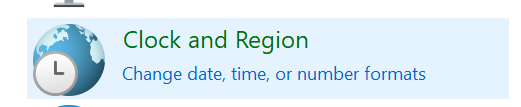
- Check Windows System Language Settings This is often the core conflict, especially when dealing with older versions of Outlook Desktop:
- Open Windows Settings > Time & Language > Language (or Region & Language).
- Locate: Administrative language settings (or the administrative tab > Change system locale...).
- If the box labeled "Beta: Use Unicode UTF-8 for worldwide language support" is CURRENTLY CHECKED (enabled), please UNCHECK it.
- Note: You will need to restart your computer for this change to take effect.


- Check Preferred Encoding Settings in Outlook: For the Outlook Desktop application (Classic Outlook):
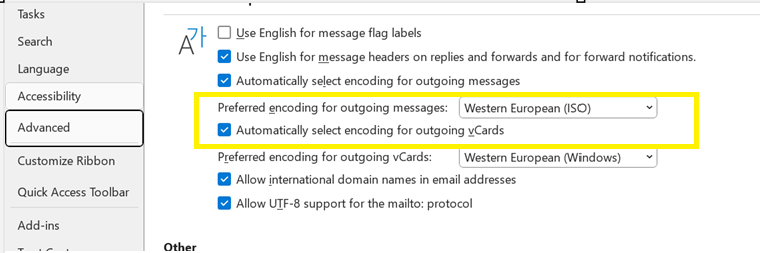
- In Outlook, go to File > Options > Advanced > International options (or Internet options).
- Find: The setting for Preferred encoding for outgoing messages.
- Try changing: Set it to Unicode (UTF-8). If it's already UTF-8 and the error persists, you can try setting it to a regional encoding like Western European (ISO) or Western European (Windows), as a temporary test.
- Restart Outlook to apply the settings.
- Check for Add-in Conflicts (Run in Safe Mode)
- Open Outlook by typing outlook.exe /safe into the Run dialog box (Windows + R).
- If the character error disappears in Safe Mode, then a conflicting Add-in is the likely cause.
- You should then disable your Add-ins one by one to find the culprit.
- Check Settings on Outlook Web App (OWA)
- Log in to OWA via your web browser.
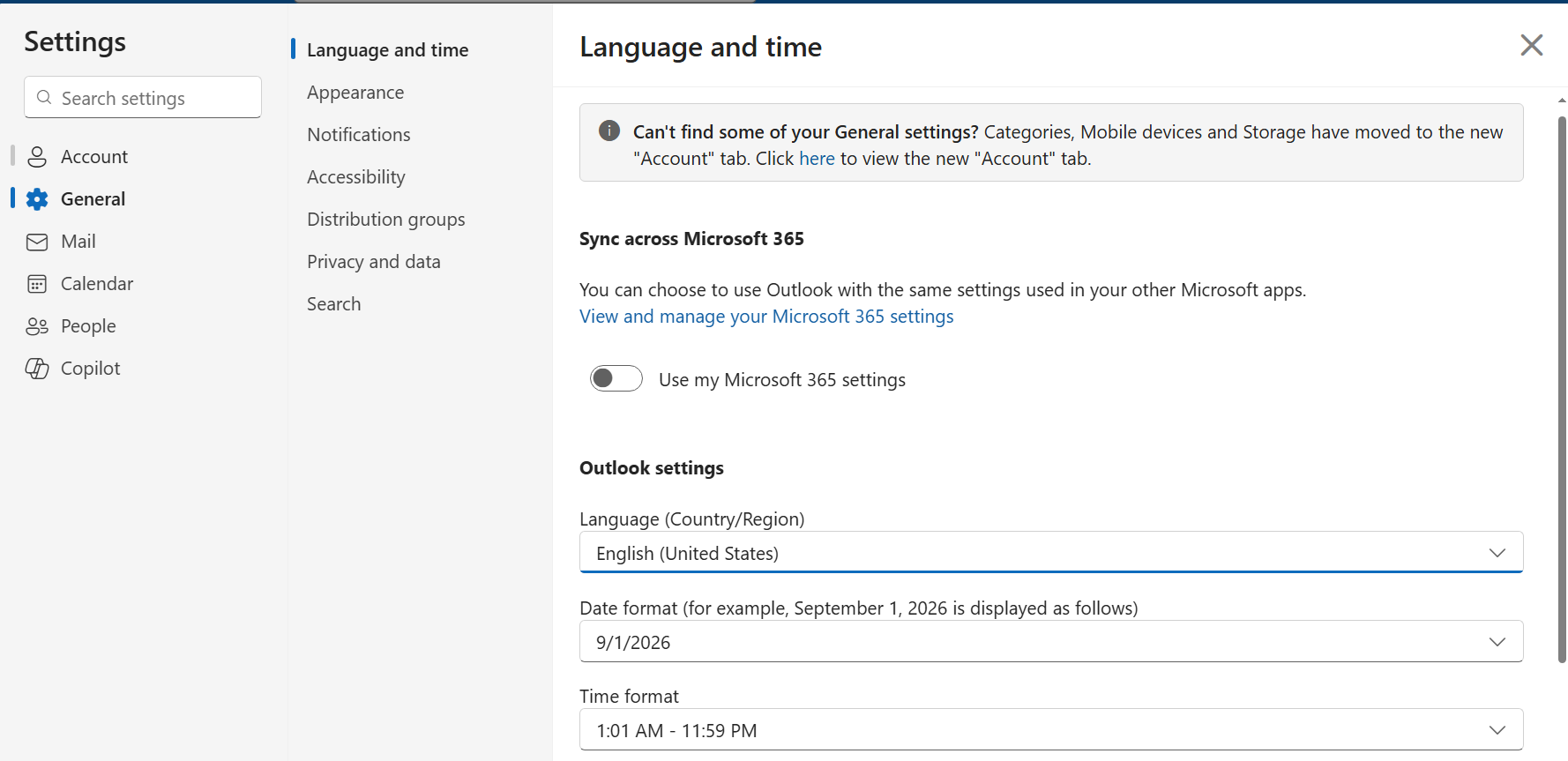
- Click the Settings icon (gear) > View all Outlook settings.
- Check: Select General > Language and Time.
- Confirm that the Language and Time Zone are accurately set for your location.
Please try these steps. If any issues arise, feel free to share, and I will always be ready to assist you.
If the answer is helpful, please click "Accept Answer" and kindly upvote it. If you have extra questions about this answer, please click "Comment".
Note: Please follow the steps in our documentation to enable e-mail notifications if you want to receive the related email notification for this thread.
' cx='32' cy='32' r='32' /%3E%3Ctext x='50%25' y='55%25' dominant-baseline='middle' text-anchor='middle' fill='%23FFF' %3EHS%3C/text%3E%3C/svg%3E)


' cx='32' cy='32' r='32' /%3E%3Ctext x='50%25' y='55%25' dominant-baseline='middle' text-anchor='middle' fill='%23FFF' %3ETN%3C/text%3E%3C/svg%3E)