How do I sign on to my main account [Moderator note: personal info removed] on the computer if the authenticator app won't connect to that account?

JT Builders Operations 0 Reputation points
2025-12-11T17:18:33.19+00:00

Our main business account isn't able to be accessed on the computer. We were somehow able to login to this account on outlook on IOS but we are not able to login on the computer. We have the authenticator app but it won't connect to that account. Then to try and add the account it keeps trying to make us use the authenticator codes but we can't access one in the first place. The authenticator thinks our account is connected when it is not. So I keep going in a circle because I can't get a code from the authenticator app.

Outlook | Web | Outlook on the web for business | Security
0 comments No comments
{count} votes

3 answers

Sort by: Most helpful
  1. Q&A Assist
    2025-12-11T17:18:50.88+00:00
    AI generated content. This question contains an answer created with AI from Q&A Assist. Learn more

    If you're having trouble signing into your main account because the Microsoft Authenticator app isn't connecting, here are some steps you can take:

    1. Check Account Connection: Ensure that your account is correctly set up in the Authenticator app. If it appears connected but isn't functioning, you may need to remove and re-add the account in the app.
    2. Use Alternative Sign-In Methods: If the Authenticator app is not providing codes, consider using a different sign-in method. If your organization allows it, you might be able to use app passwords or receive verification codes via SMS or email instead.
    3. Clear Sign-In Information: If you're using legacy clients or applications, clear the sign-in information, restart the app, and try signing in again with your username and any available app password.
    4. Contact Support: If these steps do not resolve the issue, it may be beneficial to reach out to your organization's IT support for further assistance, as they may have specific protocols in place for account recovery or access issues.
    5. Emergency Access Account: If you're concerned about being locked out in the future, consider setting up an emergency access account (break-glass account) in Microsoft Entra to prevent future lockouts.

    These steps should help you regain access to your account on the computer.


    References:

    0 comments No comments

  2. Lia V 3,475 Reputation points Microsoft External Staff Moderator
    2025-12-11T19:32:33.4433333+00:00

    Hi @JT Builders Operations,

    Thank you for posting your question in the Microsoft Q&A forum, and I’m sorry to hear you're having trouble accessing your work account due to Microsoft Authenticator app.

    Authenticator loops typically occur when the app repeatedly prompts for verification due to expired tokens, conflicting MFA policies, multiple accounts, or device issues such as incorrect time settings or outdated software. Network restrictions that block communication with Microsoft authentication servers can also trigger loops, preventing users from completing the sign-in process.

    To help us better assist you, could you please clarify the following:

    • Have you previously set up the Microsoft Authenticator app on any device for this account, or is this your first time trying to sign in?   
    • If so, are you currently using the same device where you originally registered the Authenticator app? Have you recently switched to a new device?

    While we wait for your answer, here are some steps you can try to resolve the issue:


    1/ Use an alternative sign-In method

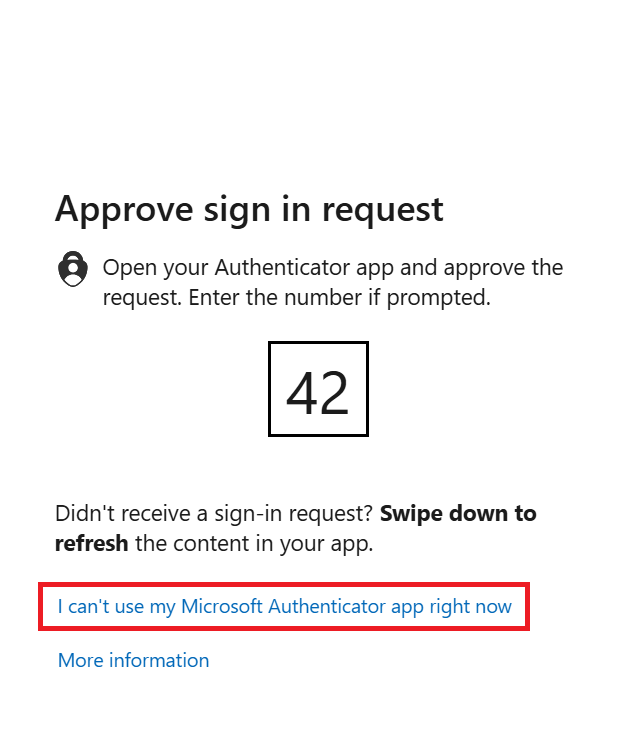
    When signing in to Outlook on your computer and prompted for a code, on the sign-in request screen, click “I can’t use my Microsoft Authenticator app right now.”
    User's image

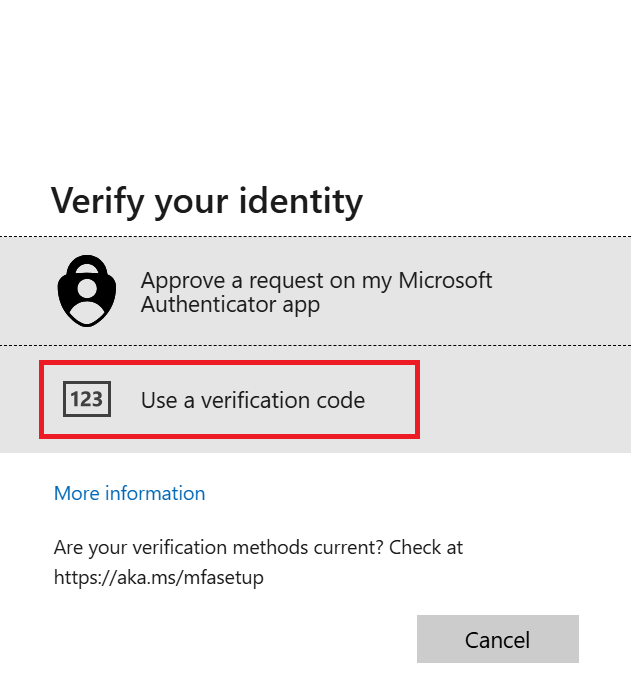
    Select "Use a verification code"

    User's image

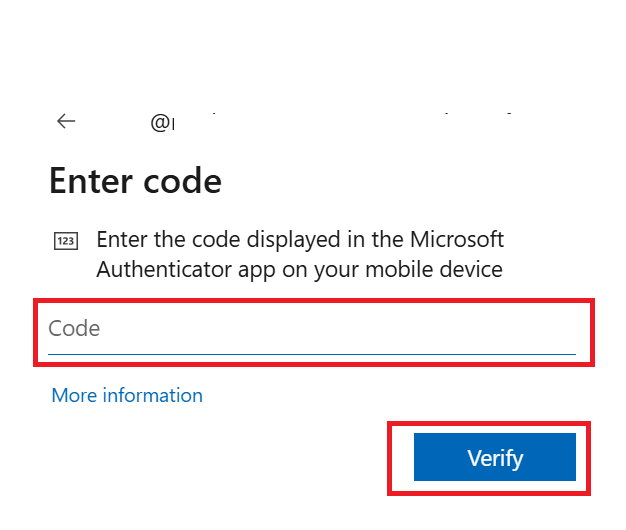
    Open the Authenticator app on your mobile device.

    Tap your work account, then locate the One-time password code (a 6-digit code).

    Enter this code in the verification field on your computer screen and click Verify.
    User's image


    2/ Contact Microsoft Data Protection Support by phone

    If you're the only admin in your organization and the above steps cannot apply to your situation, in this case, the Microsoft Data Protection Team has tools and processes in place to verify identity and regain access to administrator accounts. You can try reaching out to our Global Customer Service phone to raise a request for resetting your authentication method here: Customer service phone numbers - Microsoft Support.

    Please note that forum moderators do not have access to user account settings and cannot assist with logging in, resetting passwords, or changing access rights. While we do not have access to internal systems or administrative tools required to resolve account-specific or backend-related issues, we’ll continue doing our best to support you within the scope of our responsibilities.   

    Here are some tips and an example of a prompt to help you navigate the IVR more effectively:     

    IVR: What kind of problem are you concerned about?   

    You: Authenticator.   

    A: What products do you use?

    B: Office 365 for business.

    Verification: Education or company account?

    B: For companies

    A: Are you an administrator?

    B: Yes.

    A: Are there any other administrators in your organization?

    B: No.

    IVR: Do you need a... Service request?

    You: Yes. I need to create a ticket. Please send me directly to the Data Protection Team.


    3/ Create a new tenant to submit a support ticket

    If you cannot reach a live agent, you can create a new tenant account and submit your request from there.  

    To set up a new tenant, please follow these steps:

    Visit Microsoft 365 Business Plans and Pricing | Microsoft 365. This would allow you to create a new tenant following the prompts provided. Once set up, you can access the admin console of the new tenant and submit a support ticket requesting to speak with the Data Protection team on behalf of your previous tenant.

    Follow the guided setup process to create a new account for a new tenant.

    Once your tenant is created, you should be able to access the support portal and submit your ticket referencing your locked account without further issues.

    In your ticket description, you'll need to clearly explain that you're trying to regain access to your previous Microsoft 365 tenant and need help from the Data Protection team. Here's a message you can use or adapt:

    "Hello, I’m currently unable to access my previous Microsoft 365 tenant due to losing MFA access, which prevents me from receiving verification codes. I’m the global admin, but I’m locked out and unable to generate a QR code or bypass MFA.

    I created this new tenant solely to request assistance. I kindly ask to be connected with the Data Protection team to verify my identity and help me recover access to the original tenant.

    This is urgent, as I rely on Microsoft 365 for my work and have been unable to operate for several days. I’m available to provide any documentation or verification needed to support the recovery process."

    Ticket Support: In the Microsoft 365 Admin Center > Support > Help & Support.

    Please remember to cancel the trial subscription once your issue is resolved to avoid any unintended charges.

    I hope this helps you regain access to your account quickly. I'm glad to assist and truly hope the information provided has been useful. Please feel free to reach out anytime if you need further assistance.

    If you find my post helpful, kindly consider marking it as the accepted answer. Doing so can assist others in the community who may have similar questions in finding solutions more quickly.

    Thank you for your kindness and contributions to the forum.


    If the answer is helpful, please click "Accept Answer" and kindly upvote it. If you have extra questions about this answer, please click "Comment".

    Note: Please follow the steps in our documentation to enable e-mail notifications if you want to receive the related email notification for this thread.


  3. Lia V 3,475 Reputation points Microsoft External Staff Moderator
    2025-12-11T23:07:51.8633333+00:00

    Hi @JT Builders Operations,

    Thank you for your response.

    Based on the details you’ve shared, it appears the issue began after switching to a new phone. When a device change occurs without updating the Microsoft Authenticator app, the app on the previous device retains the security tokens used for multi-factor authentication (MFA). These tokens do not automatically transfer to the new device, which explains why you are unable to complete the verification process during sign-in.

    In this case, please follow the steps below to regain access to your account:


    1/ Contact Microsoft Support by phone

    You can try reaching out to our Global Customer Service phone to raise a request for resetting your authentication method here: Customer service phone numbers - Microsoft Support. During the call, request to speak to an agent, and share with them every detail related to your query and also mention that you are the only admin lost access to your account. This should allow you to contact the appropriate team so you can solve this incident as soon as possible. 

    Here are some tips and an example of a prompt to help you navigate the IVR more effectively:   

    IVR: What kind of problem are you concerned about?   

    You: Authenticator.   

    A: What products do you use?

    B: Office 365 for business.

    Verification: Education or company account?

    B: For companies

    A: Are you an administrator?

    B: Yes.

    A: Are there any other administrators in your organization?

    B: No.

    IVR: Do you need a... Service request?

    You: Yes. I need to create a ticket. Please send me directly to the Data Protection Team.


    2/ Create a temporary account (trial tenant) to submit a support ticket (alternative method) 

    If you cannot reach a live agent, there is still a workaround, you might consider registering for a new tenant by signing up for a trial subscription via this link Microsoft 365 Business Plans and Pricing | Microsoft 365. This would allow you to create a new tenant following the prompts provided. Once set up, you can access the admin console of the new tenant and submit a support ticket requesting to speak with the Data Protection team.      

    Please note that forum moderators do not have access to user account settings and cannot assist with logging in, resetting passwords, or changing access rights. While we do not have access to internal systems or administrative tools required to resolve account-specific or backend-related issues, we’ll continue doing our best to support you within the scope of our responsibilities.   

    If you have any additional questions or require assistance in the meantime, please do not hesitate to reach out.

    Thank you again for your cooperation and for being a value member of the forum.

    0 comments No comments

Your answer

Answers can be marked as 'Accepted' by the question author and 'Recommended' by moderators, which helps users know the answer solved the author's problem.