Hi @Akshay Goel,
Thank you for reaching out to the Microsoft Q&A forum.
Based on your description, you’re unable to see all emails in your Inbox in Classic Outlook, while searching by sender shows those messages as Unread. We truly understand and appreciate the effort you’ve already taken, including resetting the view and starting Outlook in Safe Mode.
This behavior usually occurs when Focused Inbox or a filter hides items from the current view, when conversations are collapsed or sorting obscures newer mail, or when rules move messages to other folders. It can also be linked to search indexing and sync settings, which may show items in search that aren’t currently displayed in the message list. The steps below are tailored to address these common causes and should suit your situation.
Below are a few options that may address your needs effectively:
1/ Firstly, proceed by running a Message Trace to check message flow.
- Please involve your tenant admin to run a message trace in the Exchange Admin Center (EAC). This will help determine whether the email was ever received by EOP and provide visibility into its delivery status. Run a message trace and view the results in the Exchange admin center in Exchange Online | Microsof…
- If the trace shows no record of the email, it confirms that the message did not reach Exchange and may have been blocked or failed at the connector level.
2/ Then, stop mail-moving rules and confirm that syncing is working correctly.
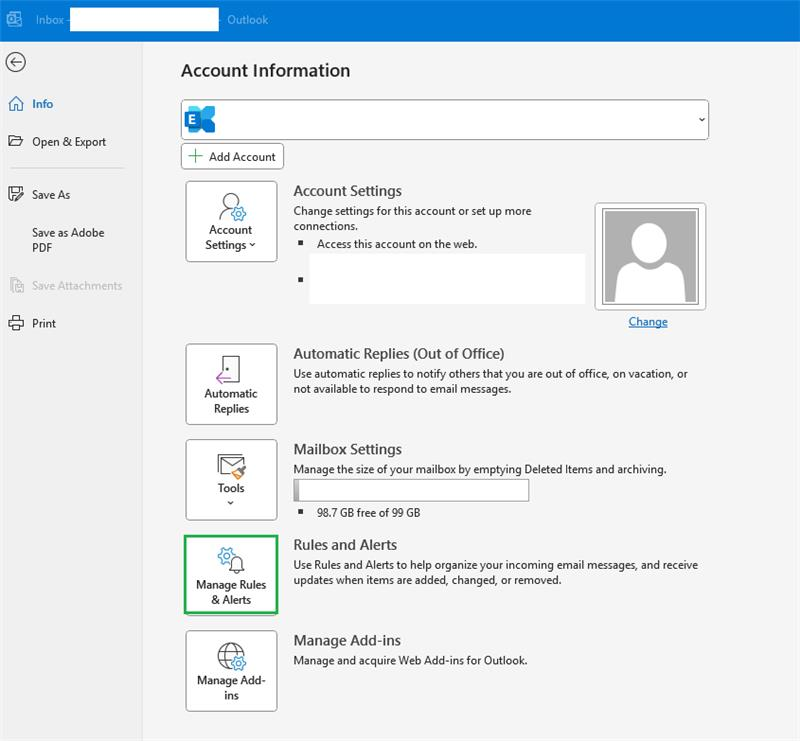
- File > Manage Rules & Alerts, temporarily uncheck rules that move or delete messages.
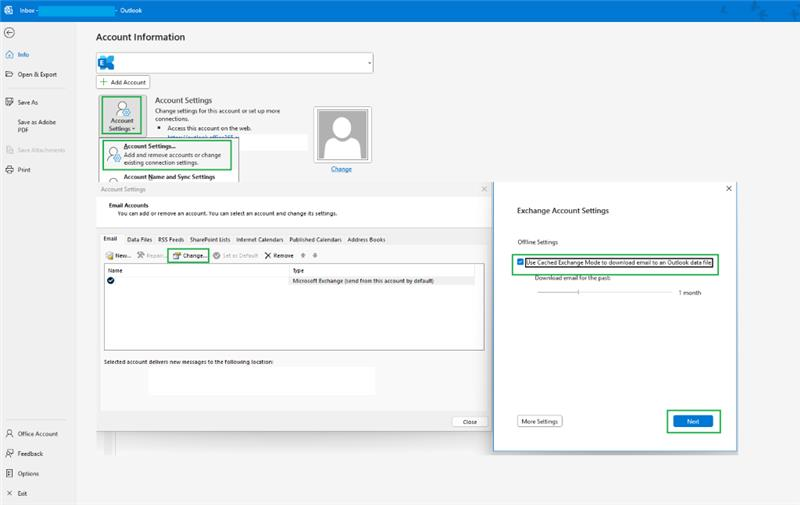
- File > Account Settings > Account Settings > select your account > Change > enable Use Cached Exchange Mode, then restart Outlook.
- If your account is IMAP: right‑click Inbox > IMAP Folders… > Query and Subscribe to folders that should appear.
3/ Afterward, troubleshoot search issues and repair the data file as needed.
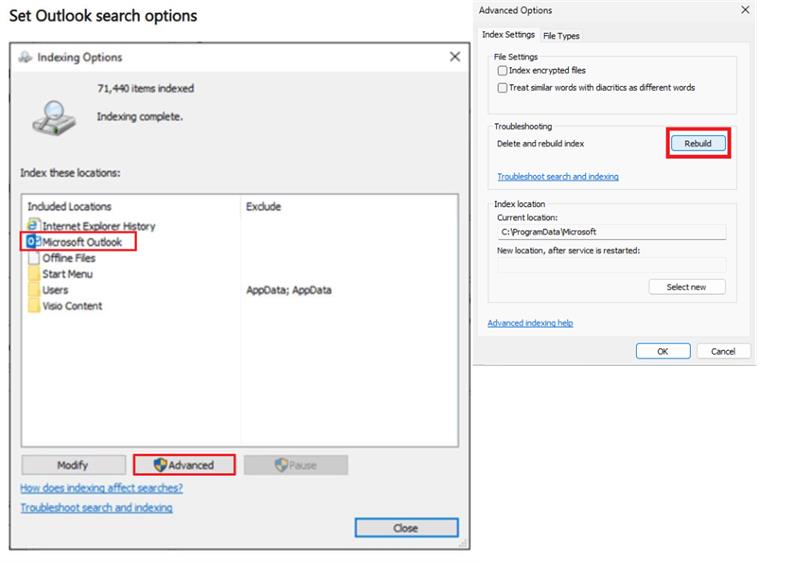
- Rebuild the index: close Outlook, open Control Panel > Indexing Options > Advanced > Rebuild, then reopen Outlook and allow time for indexing.
4/ Lastly, consider advanced recovery options should the problem persist.
- Create a new Outlook profile: Control Panel → Mail → Show Profiles → Add; set up the account again and make the new profile default.
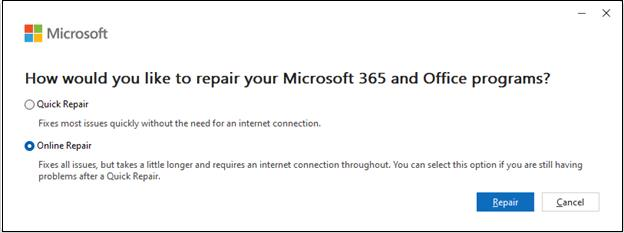
- Repair Office installation: Control Panel → Programs and Features → Microsoft Office → Change → choose Quick Repair or Online Repair.
- Disable non‑essential add‑ins: File → Options → Add‑ins → Manage COM Add‑ins → Go… → uncheck all non‑essential add‑ins.
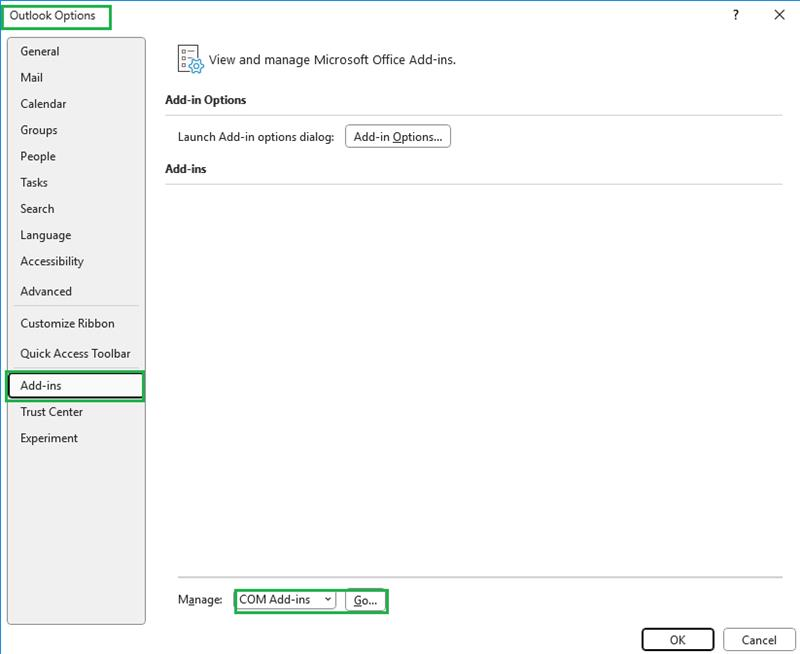
- Run Microsoft Support and Recovery Assistant (SaRA): download from aka.ms/SaRA-OutlookSetup and follow the prompts to automatically diagnose and fix Outlook issues.
5/ As your account is managed by your organization, please contact your IT administrator to check your permission and policies. For a more efficient resolution, we recommend using your administrator account or contacting your IT administrator to submit a support request directly to Microsoft Support team.
They can raise a support ticket by visiting: Get support - Microsoft 365 admin | Microsoft Learn
As community moderators, we appreciate your understanding that our access to internal development details is limited. Our primary role is to guide users toward the appropriate resources and support channels. While we may not have visibility into deeper backend analysis, we’ll continue doing our best to support you within the scope of our responsibilities.
I hope this information is helpful. Please follow these steps and let me know if it works for you. If you have any updates regarding the issue, please feel free to share them with me.
Thank you for your patience and your understanding. If you have any questions or need further assistance, please feel free to share them in the comments on this post so I can continue to support you.
I look forward to continuing the conversation.
If the answer is helpful, please click "Accept Answer" and kindly upvote it. If you have extra questions about this answer, please click "Comment".
Note: Please follow the steps in our documentation to enable e-mail notifications if you want to receive the related email notification for this thread.
' cx='32' cy='32' r='32' /%3E%3Ctext x='50%25' y='55%25' dominant-baseline='middle' text-anchor='middle' fill='%23FFF' %3EAG%3C/text%3E%3C/svg%3E)


' cx='32' cy='32' r='32' /%3E%3Ctext x='50%25' y='55%25' dominant-baseline='middle' text-anchor='middle' fill='%23FFF' %3EVN%3C/text%3E%3C/svg%3E)