Dear Michael First MD,
Welcome to Microsoft Q&A.
I’m really sorry you’re facing this issue, and I completely agree with you, New Outlook still lacks several features that Classic Outlook offers, so your preference for Classic Outlook makes perfect sense.
From your description, the problem is that in Classic Outlook, incoming emails display with a very small font and large indent, and changing default font settings doesn’t fix it. Switching to New Outlook temporarily resolves the issue, but when you return to Classic Outlook, the problem comes back.
I’ve reviewed Microsoft documentation and similar cases, and here are the steps you can try:
Step 1. Reset View Settings
In Classic Outlook, go to:
- View > Change View > Manage Views > Reset View

This clears any custom view settings that might be forcing unusual indentation or font size.
Step 2. Adjust View Settings
In Classic Outlook:
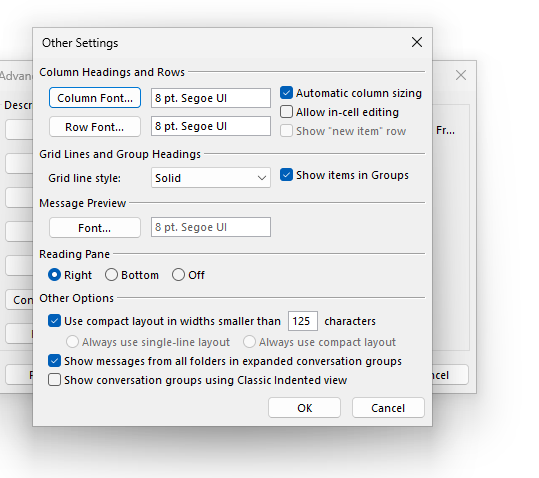
- View > View Settings > Other Settings
- Set fonts for Column headings and Row font to a readable size.
- Click OK to save changes.
Step 3. Convert Incoming Mail to Plain Text (Optional)
If the tiny font and indent are caused by HTML formatting:
Go to:
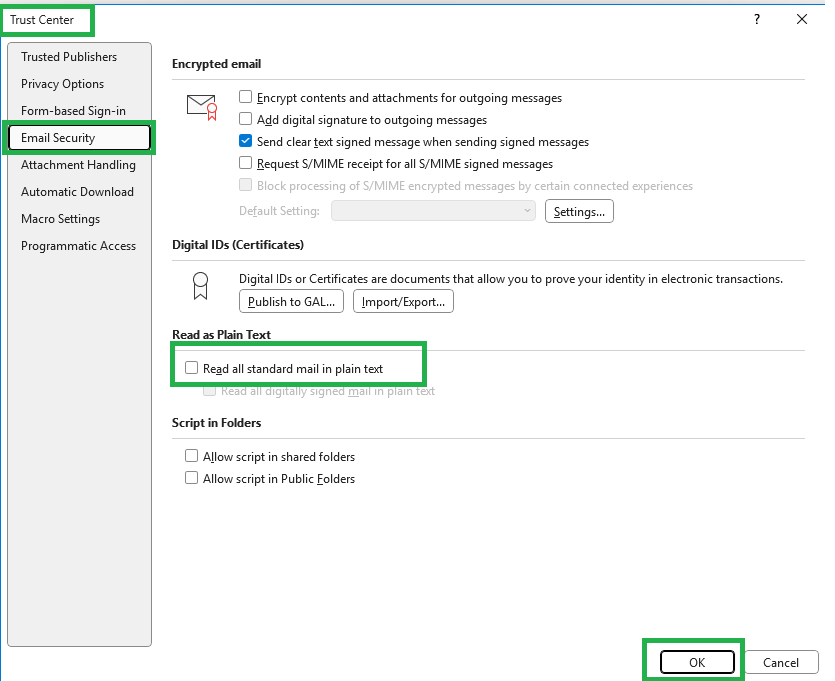
File > Options > Trust Center > Trust Center Settings > Email Security
Enable: Read all standard mail in plain text
Step 4. Reset Outlook Profile
If settings keep reverting after switching between Classic and New Outlook:
Close Outlook.
Go to: Control Panel > Mail > Show Profiles > Add
Create a new profile, set it as default, and reconfigure your account.
Step 5. Repair Office Installation
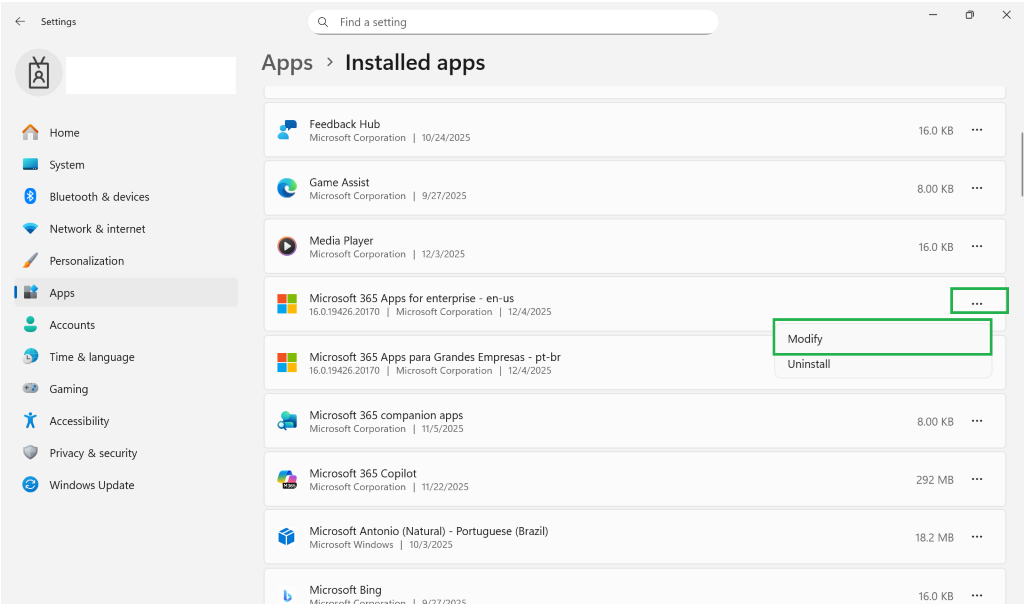
Go to: Settings > Apps > Microsoft 365 > Modify > Online Repair
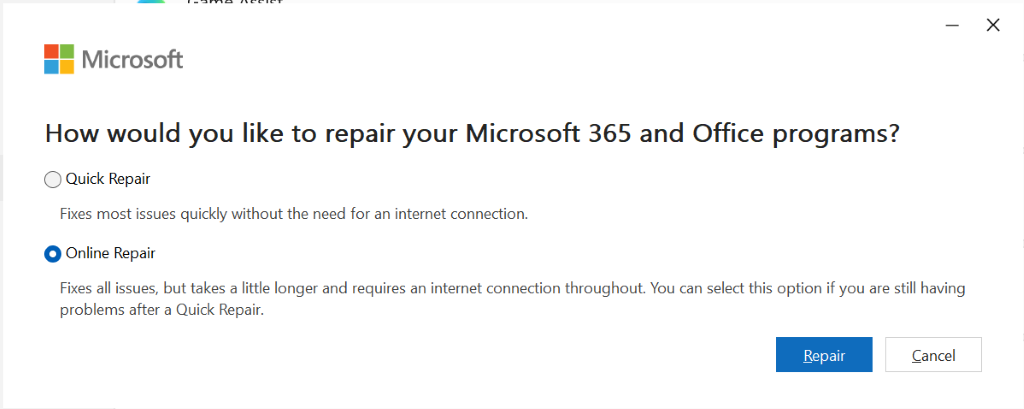 This will reinstall core components without affecting your data.
Step 6. Disable Add-ins
In Outlook: File > Options > Add-ins > Manage COM Add-ins > Go
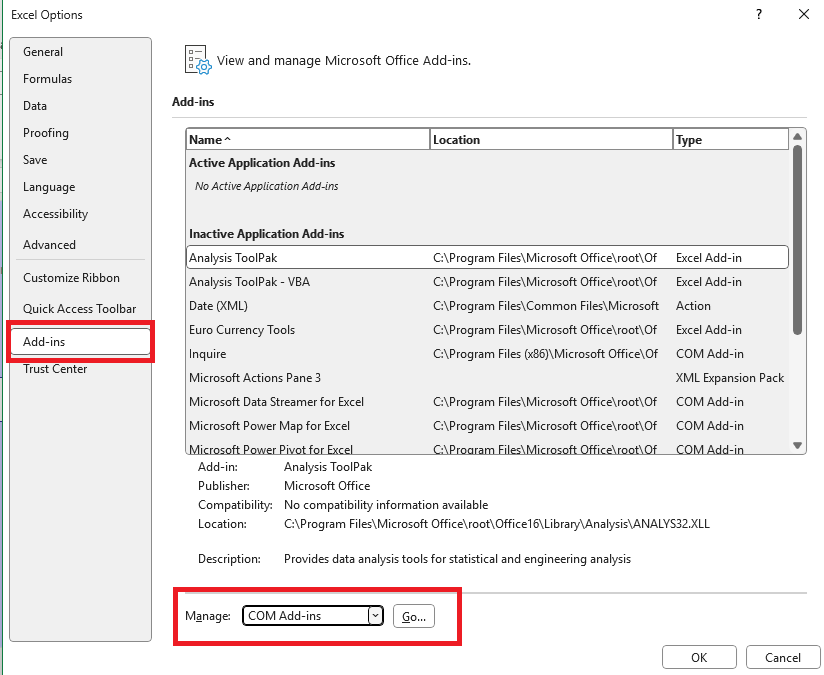 Uncheck all add-ins and restart Outlook to rule out conflicts.
Please understand that our initial response does not always resolve the issue immediately. However, with your help and more detailed information, we can work together to find a solution.
I hope this information helps point you in the right direction. If you run into any issues while trying the steps, or if something still doesn’t feel quite right, please don’t hesitate to reach out again. I’ll do my best to support you however I can.
Looking forward to hearing back from you with any updates or additional details.
Warm regards,
If the answer is helpful, please click "Accept Answer" and kindly upvote it. If you have extra questions about this answer, please click "Comment".
Note: Please follow the steps in our documentation to enable e-mail notifications if you want to receive the related email notification for this thread.
' cx='32' cy='32' r='32' /%3E%3Ctext x='50%25' y='55%25' dominant-baseline='middle' text-anchor='middle' fill='%23FFF' %3EMF%3C/text%3E%3C/svg%3E)


' cx='32' cy='32' r='32' /%3E%3Ctext x='50%25' y='55%25' dominant-baseline='middle' text-anchor='middle' fill='%23FFF' %3ELD%3C/text%3E%3C/svg%3E)