Dear @Eva D,
Thank you for posting your question in the Microsoft Q&A forum.
I understand you’d like to use the Booking tool in Outlook and are wondering how to enable this option.
Microsoft Bookings lets you create a shareable booking page integrated with your Outlook. This lets others view your availability and book appointments directly, no more back-and-forth.
Since you haven’t specified whether you’re using a work, school, or personal account, or which license is associated with it, please refer to the following information to help clarify your concern.
Confirm your Microsoft 365 plan
Bookings is included with these subscriptions:
- Business Standard or Premium
- Microsoft 365 A3, A5, E3, or E5. For E3/E5, Bookings must be activated by an admin.
Once you’ve confirmed that your account includes a subscription with the Booking feature and that it’s enabled by your IT admin, please follow the steps in the Q&A Assist article to add the Booking app in Outlook on the web. To make the process easier to visualize, you can refer to the illustrative images provided below:
Step 1: Open Outlook on the web.
Step 2: Click the Apps icon.
Step 3: Search for Bookings and select it.
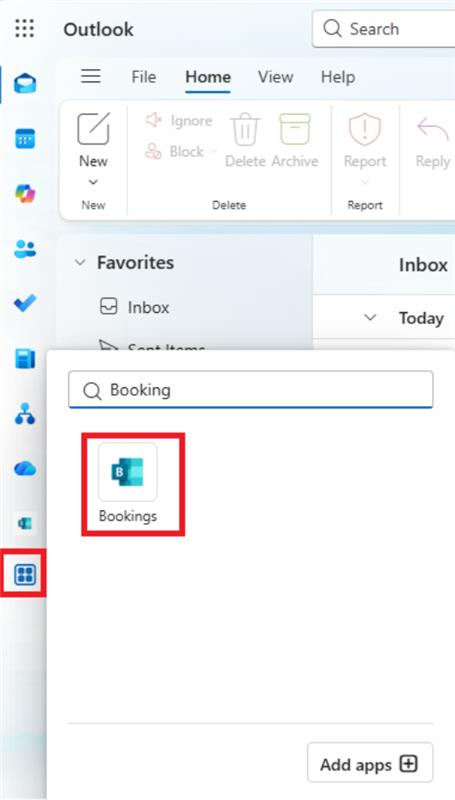
Step 4: Once the Bookings page opens, right-click and choose Pin to keep the app easily accessible.

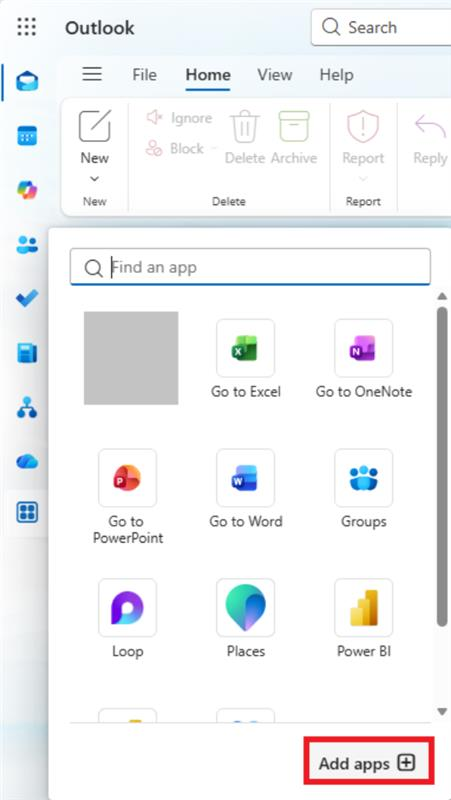
If you don’t see Microsoft Bookings when searching:
- Click Add apps.
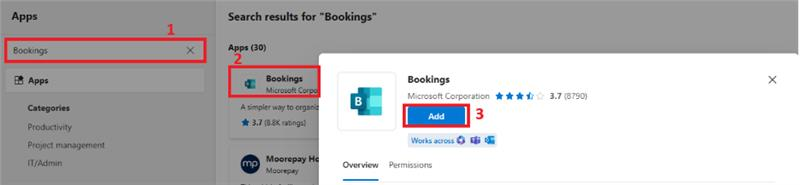
- Search for Microsoft Bookings.
- Select it and click Add.
As community moderators, we kindly ask for your understanding that our access to internal development details is limited. Our primary role is to guide users toward the appropriate resources and support channels. While we may not have visibility into performing deeper backend analysis, we’ll continue doing our best to support you within the scope of our responsibilities.
I hope this information is helpful. Please follow these steps and let me know if it works for you. If not, we can work together to resolve this.
Thank you for your patience and understanding. If you have any questions or need further assistance, please feel free to share them in the comments on this post so I can continue to support you.
If the answer is helpful, please click "Accept Answer" and kindly upvote it. If you have any extra questions about this answer, please click "Comment".
Note: Please follow the steps in our documentation to enable e-mail notifications if you want to receive the related email notification for this thread.
' cx='32' cy='32' r='32' /%3E%3Ctext x='50%25' y='55%25' dominant-baseline='middle' text-anchor='middle' fill='%23FFF' %3EED%3C/text%3E%3C/svg%3E)


' cx='32' cy='32' r='32' /%3E%3Ctext x='50%25' y='55%25' dominant-baseline='middle' text-anchor='middle' fill='%23FFF' %3ERN%3C/text%3E%3C/svg%3E)